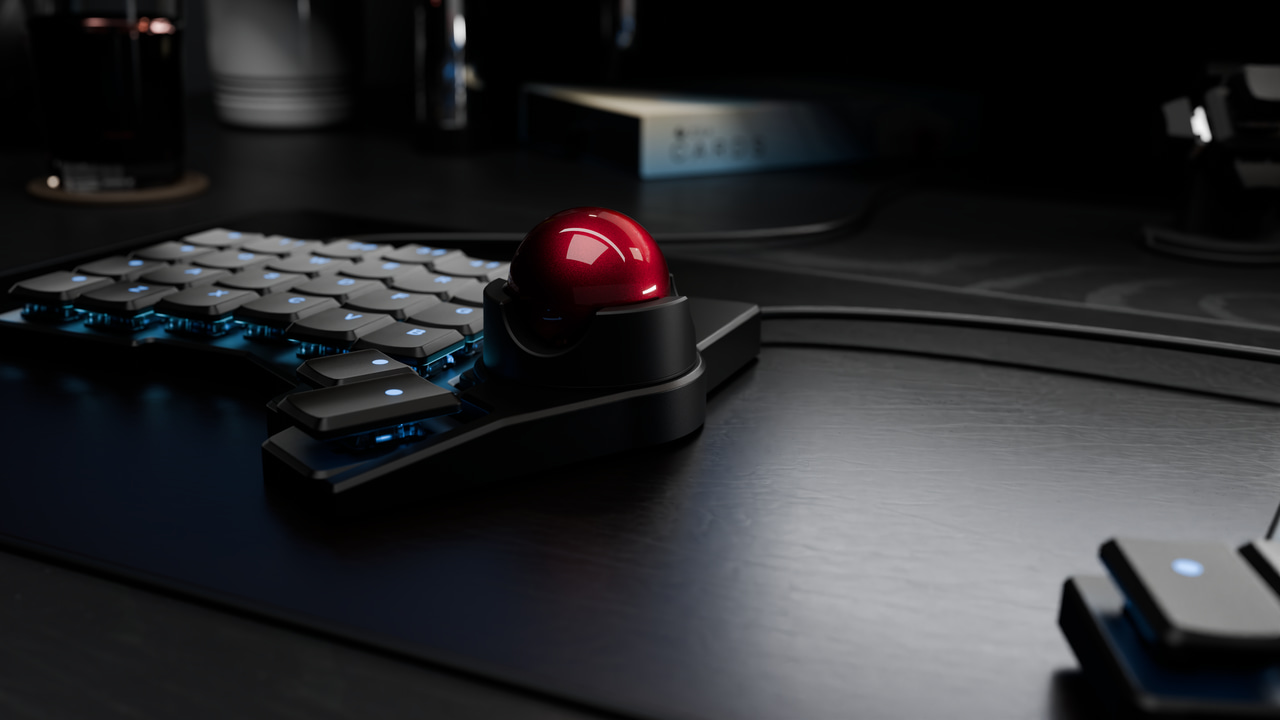
The versatility of a Trackball, always at your fingertips
Using the Navigator Trackball is just like using a separate trackball, but smarter. Instead of separate mouse buttons, your keys transform into mouse actions when you use the Trackball, and transform back when you’re done.
For productivity (email, coding, web browsing) this Trackball can be your daily driver. For more specialized applications (like design and gaming), you’re still going to want your specialized mouse or pointing device.
Thoughtful cables
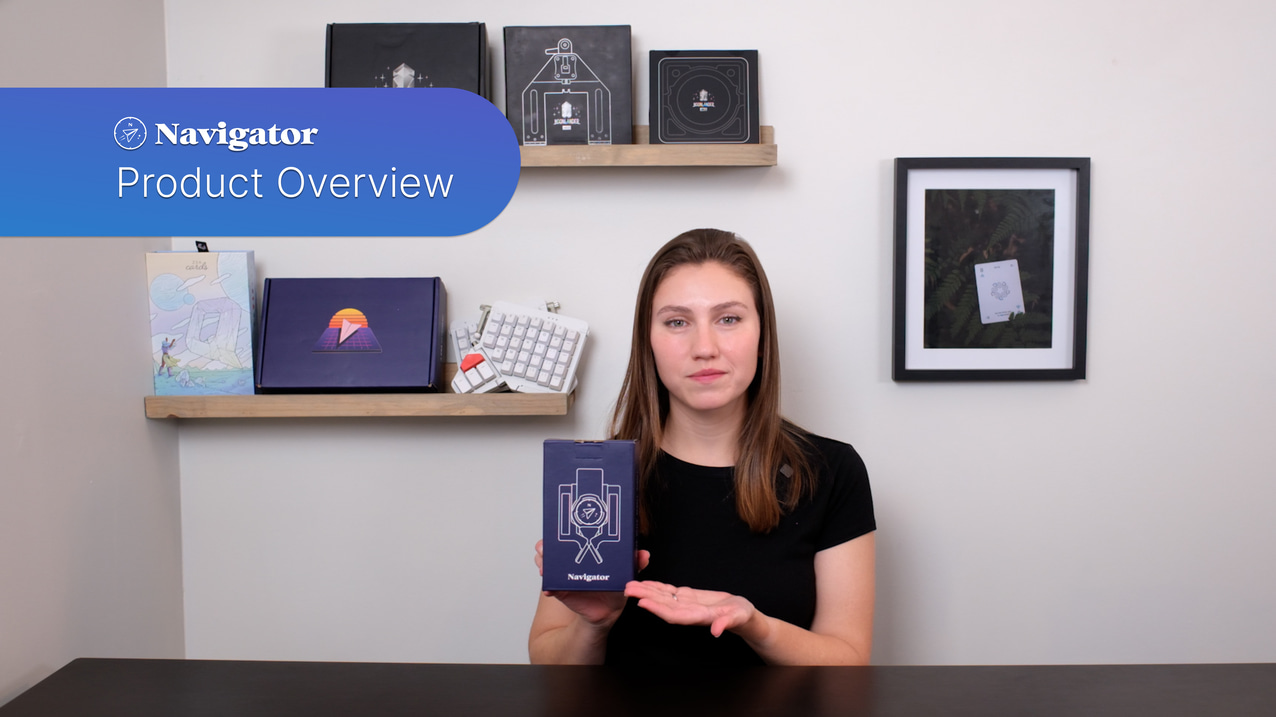
Nice braided TRRS cables. One cable goes from the Navigator itself to the nearer half of the board (so it’s short), and the other goes to the Voyager’s other half (so it’s long). These have angled connectors for the Voyager on one end, and straight connectors for the Navigator on the other end, to fit with the shape of each component.
Turns into a giant
scroll wheel
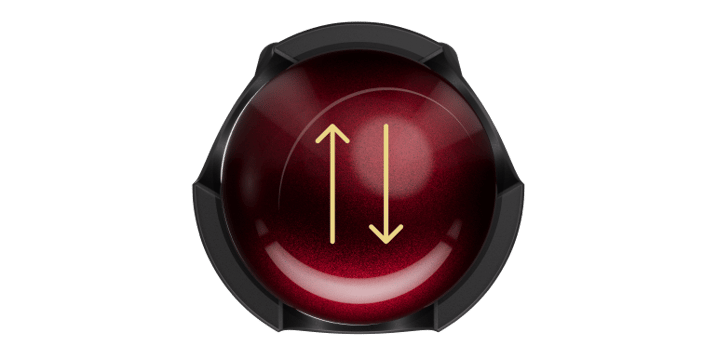
Hit a key (or hold one, if you prefer) and the entire Trackball turns into a big scroll wheel you can move around to scroll vertically or horizontally. It is easy to control the rate of scrolling, too.
Silky smooth
The Trackball is supported within its crown by three smooth ceramic beads. This drastically reduces friction, making it easy to control the Trackball with just a single finger.
Deep configuration
The Navigator Trackball is easy to set up and offers tons of options to tailor your experience. Dial it in just the way you like it, and it’ll feel like an extension of your mind.
Auto-Mouse Layer
When you set up your Trackball, you’ll get a Mouse Control layer that automatically activates as you mouse around. Anything you would do with a mouse (click, scroll, etc.) will be right under your fingers. Tune the Mouse layer timeout to your preferences, and the Navigator Trackball will feel seamless, activating and deactivating exactly when you need it to.